
Download Microsoft Remote Desktop 10 – Free Secure Remote Desktop Tool for Windows, macOS, Android & iOS
Overview of Microsoft Remote Desktop 10
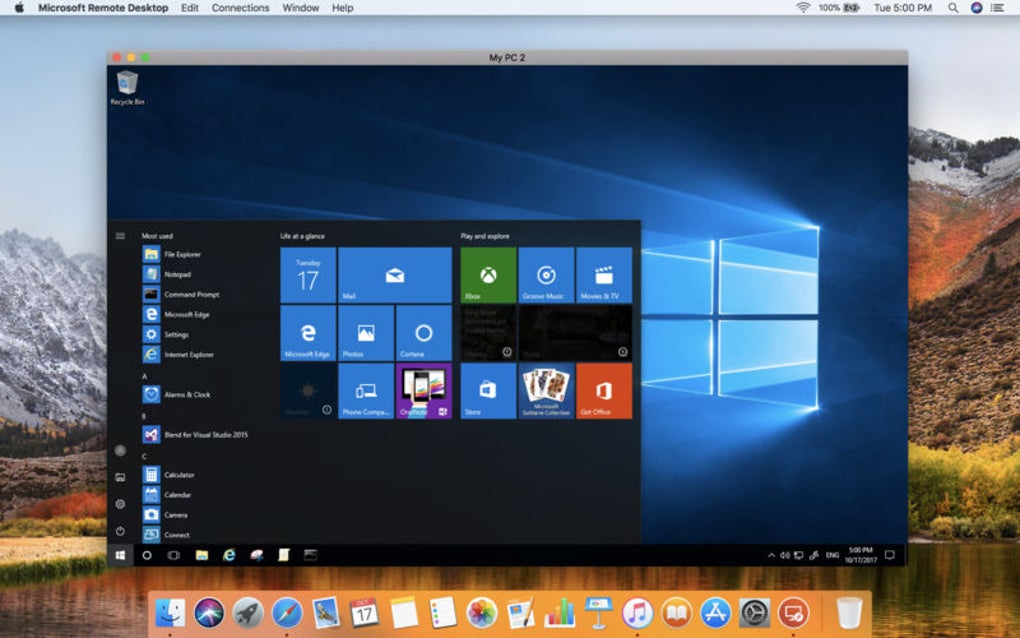
Microsoft Remote Desktop 10 is a free, cross‑platform application that lets you connect to a Windows PC or server from virtually any device with an internet connection. Built on Microsoft’s proven Remote Desktop Protocol (RDP), the app delivers fast, reliable screen sharing, high‑quality audio and video streaming, and seamless file transfer. Whether you’re a remote worker needing to access corporate resources, a tech support specialist troubleshooting a client’s machine, or a home user wanting to run a game or media library from a distant PC, Remote Desktop 10 offers a secure, low‑latency bridge between devices.
The modern interface mirrors the look and feel of Windows 10, while the underlying technology guarantees encryption, network level authentication, and automatic reconnects when connectivity drops. Because it’s a Microsoft‑branded solution, it integrates tightly with Azure Active Directory, Windows Hello, and multi‑factor authentication, ensuring that only authorized users can gain access. The app is regularly updated through the Microsoft Store, Apple App Store, and Google Play, delivering security patches and performance enhancements without any hidden fees.
Key Features and What Sets It Apart
- Cross‑platform support: Native clients for Windows 10/11, macOS, Android, and iOS.
- High‑performance streaming: Optimized for 4K video, 60 fps, and multi‑channel audio, making it suitable for media playback and light gaming.
- Secure connection: Uses TLS/SSL encryption, Network Level Authentication (NLA), and optional Azure AD integration.
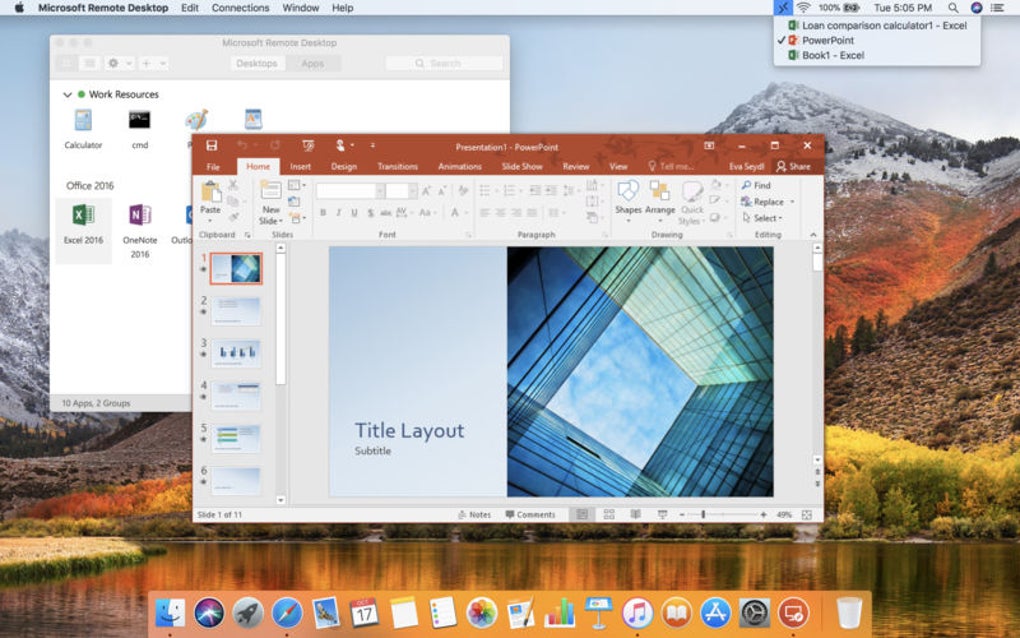
- Multi‑monitor handling: Seamlessly extend or duplicate remote displays across several local monitors.
- Clipboard synchronization: Copy‑paste text, images, and files between local and remote sessions.
- Remote resource redirection: Access local printers, drives, and USB devices from the remote machine.
- Dynamic resolution scaling: Automatically adapts the remote display to the size and orientation of the client device.
- Easy account management: Store multiple remote connections, group them, and switch with a single tap.
- Free updates: Regular feature releases and security patches delivered through official app stores.
These capabilities are backed by Microsoft’s enterprise‑grade infrastructure, which means you benefit from the same reliability that powers Windows Server and Azure Virtual Desktop. The app also supports RemoteFX, a technology that enhances graphic performance for remote sessions, and it works smoothly over both wired Ethernet and Wi‑Fi networks. For organizations, the ability to enforce Conditional Access policies and to audit session logs through Azure Monitor adds a layer of compliance that many third‑party remote tools lack. Overall, the feature set makes Microsoft Remote Desktop 10 a compelling, cost‑free alternative to paid remote‑access solutions.
Installation, Usage & Compatibility – Getting Started Quickly
Installing Microsoft Remote Desktop 10 is straightforward. On Windows 10/11, download the client from the Microsoft Store or the official website; the app will auto‑update via Windows Update. macOS users can retrieve it from the Mac App Store, while Android and iOS devices should use Google Play and the Apple App Store respectively. After installation, launch the app and sign in with your Microsoft account or Azure AD credentials. The first‑time setup wizard prompts you to add a PC by entering the remote machine’s name or IP address, choosing the user account, and optionally configuring gateway settings for corporate networks.
Once a connection is saved, tap or click the entry to initiate the session. The client automatically negotiates the best possible display resolution and network settings. If you’re on a limited bandwidth connection, you can manually adjust the “Performance” slider to prioritize speed over visual fidelity, reducing latency for text‑heavy applications. The app also offers a “Full Screen” mode that hides local UI elements, providing an immersive remote experience.
Compatibility: The Windows client requires Windows 10 version 1809 or later; the macOS version runs on macOS 10.14 (Mojave) and newer. Android devices need version 5.0 Lollipop or higher, and iOS requires iOS 13 or later. Remote Desktop 10 works with any Windows machine that has Remote Desktop enabled (Professional, Enterprise, or Education editions). Home editions do not host remote sessions, but they can still be accessed if a third‑party RDP server is installed.
During a session you can access local resources such as printers, USB drives, and the clipboard. To enable these, open the client’s settings, navigate to “Resources,” and toggle the desired options. For corporate environments, the “Gateway” option lets you tunnel the connection through a Remote Desktop Gateway server, adding an extra layer of security and simplifying firewall configuration.
Pros:
- Free, no hidden licensing fees.
- Native experience on all major platforms.
- Strong security with TLS, NLA, and Azure AD.
- High‑quality audio/video streaming.
- Regular updates directly from Microsoft.
Cons:
- Limited to Windows hosts; cannot connect to macOS or Linux natively.
- Advanced configuration (gateways, conditional access) may require IT expertise.
- Performance can degrade on very high‑latency networks.
Overall, the installation process is designed for both beginners and power users. The intuitive UI, combined with granular settings for performance and security, ensures that you can get a remote session up and running in under five minutes, regardless of the device you’re using.
Conclusion & Call to Action
Microsoft Remote Desktop 10 stands out as a free, secure, and highly performant remote‑access solution that works across Windows, macOS, Android, and iOS. Its deep integration with Microsoft’s authentication ecosystem, combined with features like multi‑monitor support, clipboard sync, and high‑resolution streaming, makes it a solid choice for both individual users and enterprise environments. While it is limited to Windows hosts and may need some IT knowledge for advanced gateway setups, the benefits far outweigh these minor drawbacks. If you need a reliable way to work from home, support remote devices, or simply access your personal PC while traveling, Microsoft Remote Desktop 10 provides a professional‑grade experience without any subscription cost.
Ready to take control of your remote machines? Download Microsoft Remote Desktop 10 now and start connecting securely in minutes.
Frequently Asked Questions
Is Microsoft Remote Desktop 10 really free?
Yes, the client application is completely free on all platforms. There are no hidden subscription fees, and updates are delivered at no cost.
Can I use the app to connect to a Linux machine?
Microsoft Remote Desktop 10 only supports Windows hosts natively. To connect to Linux, you would need a third‑party RDP server such as xrdp installed on the Linux machine.
What security measures protect my remote sessions?
Connections are encrypted with TLS/SSL, require Network Level Authentication, and can be tied to Azure Active Directory for multi‑factor authentication. You can also enforce Conditional Access policies for added protection.
How does performance hold up on a slow internet connection?
The app includes a performance slider that lets you reduce visual quality to prioritize speed. On very low bandwidth, you can disable desktop background and animation to keep the session responsive.
Do I need a Microsoft account to use the client?
A Microsoft or Azure AD account is required for authentication. If your organization uses Windows Hello or other SSO methods, those can be leveraged as well.







